Showing posts with label creativity. Show all posts

Sunday, 12 February 2017

Who is Melvin Bubble - Templates to make a student version - Great End of Term Writing Project

The Book, "Who is Melvin Bubble" by Nick Bruel is such a fun book to read to your students, and is a great template for having them write their own version of the book.

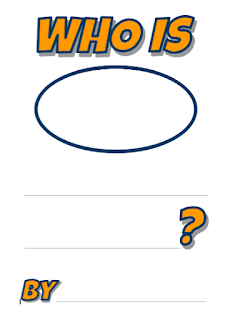
The book template 
Below I have a link to a Google Docs version of a template document that I use with my students. After you have read the book together they will be able to fill in the book with their own information, humour and creativity,
Tap here for a open the storybook template

Learning how to draw yourself as a cartoon
I have also included a copy of the presentation I put together to help students learn how draw themselves as a Melvin Bubble style cartoon. I found the best way to use this was to email the link to the slides to the whole class and then have them go through it by themselves when they get up to the illustration stage.

If you find this useful and get some good results I would love if you could share them with me on twitter mentioning @Shaunyk@shaunyk

Tap here for a open the storybook template


Wednesday, 8 February 2017

Choose Your Own Adventure stories - How to engage reluctant writers (Pick a path)

I remember reading Choose Your Own Adventure books a lot as a child, in particular the "Your Very Own Robot". I'm sure I read through that book 20-30 times, choosing a different path each time. For that reason I have always liked the idea of giving my students the chance to create their own Choose Your Own Adventure stories using hyperlinks.

Using Google Slides on the iPad or Browser
There are a few ways to do this, but the best way I have found is using Google Slides. It's simple, free and platform agnostic.

Below is an example of a story I wrote myself. The last 3 slides have the planning documents that I use with the students.


Send out a template file to your class
 Click this link to make a copy of the template file I send out to students. Clicking on this link will create a copy of the document. You can copy and paste this link if you want to share it directly with your students.

Planning - The most important step!
Planning out how the story flows is very important when you do this for the first time. I use Popplet with the students, but you could simply use a piece of paper. If you look at the image below I number each step so that it is the same as the slide number in the presentation slide deck. It's important that students can see how the story flows and which step links to the next.


Adding the links on the iPad


Adding links in a browser
Once you have highlighted the text, right click and then click on link. In the link pop up you can choose "Slides from this presentation instead" and click on the slide you want to link to.

Another reason that I like this option for creating choose your own adventure stories is that Google Slides embed very nicely into student blogs, and as I mentioned at the start, are platform agnostic so you can read them on any device.

Using hyperlinks is an important skill for students to understand and this project is a great way to teach students how to use them and gives them some starting ideas on how they can be used.


Tuesday, 7 February 2017

Getting started with Stop Motion on the iPad

Stop motion is one of the most rewarding and fun creative outlets the iPad provides. There are super simple apps to use and the effects are great. I personally use Stop Motion HD from Cat Eater, here is a link to download it.

Stop motion is a great way to get students to visualise their learning, as well as engaging them in a creative and challenging activity.

Check out my video below which gives you some ideas about how to get started with Stop Motion.


Monday, 23 November 2015

Make Things Move Magically with Reverse Video

Students love video effects on the iPad, and this one is a great effect to make it look like you can magically move things with your thoughts. It is super simple and uses the free app "Reverse Vid" following is a very short video which explains to students how to do this on their iPad.

If you make one it would be great if you could link a copy to it in the comments below.