Showing posts with label Publishing. Show all posts

Sunday, 12 February 2017

Who is Melvin Bubble - Templates to make a student version - Great End of Term Writing Project

The Book, "Who is Melvin Bubble" by Nick Bruel is such a fun book to read to your students, and is a great template for having them write their own version of the book.

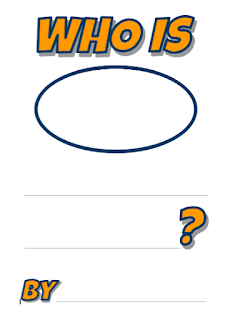
The book template 
Below I have a link to a Google Docs version of a template document that I use with my students. After you have read the book together they will be able to fill in the book with their own information, humour and creativity,
Tap here for a open the storybook template

Learning how to draw yourself as a cartoon
I have also included a copy of the presentation I put together to help students learn how draw themselves as a Melvin Bubble style cartoon. I found the best way to use this was to email the link to the slides to the whole class and then have them go through it by themselves when they get up to the illustration stage.

If you find this useful and get some good results I would love if you could share them with me on twitter mentioning @Shaunyk@shaunyk

Tap here for a open the storybook template


Friday, 10 February 2017

Flat Stanley Aventure Story

A short time ago I posted about creating Choose Your Own Adventure stories using Google Slides, you can view that here. It is such a simple project, but one that is so engaging and fun for students.

After introducing this to some of my colleagues, one teacher asked if we could do the same style of writing for a Flat Stanley project he was completing, if you haven't heard about it you can find out more information here: Flat Stanley Official Project information

We followed the same template as we had before for a choose your own adventure, except this time we themed it for the Flat Stanley Project. Below is a copy of the planning Popplet I created for my own story, and the final version of my Flat Stanley story. You may notice in the planning document that I kept the numbers in each planning bubble the same as the slide number that information is on in the slide deck. This is important as it helps students when they are linking their files.

This was a great project, and a different way for our students to teach someone else about our home of Singapore.

Send out a template file to your class
 Click this link to make a copy of the template file I send out to students. Clicking on this link will create a copy of the document. You can copy and paste this link if you want to share it directly with your students.


Wednesday, 8 February 2017

Choose Your Own Adventure stories - How to engage reluctant writers (Pick a path)

I remember reading Choose Your Own Adventure books a lot as a child, in particular the "Your Very Own Robot". I'm sure I read through that book 20-30 times, choosing a different path each time. For that reason I have always liked the idea of giving my students the chance to create their own Choose Your Own Adventure stories using hyperlinks.

Using Google Slides on the iPad or Browser
There are a few ways to do this, but the best way I have found is using Google Slides. It's simple, free and platform agnostic.

Below is an example of a story I wrote myself. The last 3 slides have the planning documents that I use with the students.


Send out a template file to your class
 Click this link to make a copy of the template file I send out to students. Clicking on this link will create a copy of the document. You can copy and paste this link if you want to share it directly with your students.

Planning - The most important step!
Planning out how the story flows is very important when you do this for the first time. I use Popplet with the students, but you could simply use a piece of paper. If you look at the image below I number each step so that it is the same as the slide number in the presentation slide deck. It's important that students can see how the story flows and which step links to the next.


Adding the links on the iPad


Adding links in a browser
Once you have highlighted the text, right click and then click on link. In the link pop up you can choose "Slides from this presentation instead" and click on the slide you want to link to.

Another reason that I like this option for creating choose your own adventure stories is that Google Slides embed very nicely into student blogs, and as I mentioned at the start, are platform agnostic so you can read them on any device.

Using hyperlinks is an important skill for students to understand and this project is a great way to teach students how to use them and gives them some starting ideas on how they can be used.


Thursday, 12 May 2016

Making the ultimate WANTED poster using Google Slides.

Recently as part of a social studies unit we had class I was asked to help create "Wanted" posters. Given our students have used Googles Slides for many projects this year we decided to create the posters using this tool. As a point of difference we used a custom slide size so that we could create portrait posters. A link to this template is here, as well as on the last page of the slideshow below. (It will prompt you to make a copy)


It was a great lesson and resulted in some terrific outcomes. I also gave students the option to use iPad apps such as "Over" or "PicCollage", but most of them ended up using Slides.


Tuesday, 15 December 2015

Helpful tips for embedding documents in Blogger - Docs, Slides, PDFs

Embedding documents into Blogger is not always completely straightforward, particularly when you want to embed a PDF, so I made a set of 5 videos to help out with this very issue. From embedding Google Docs & Slides, to PDFs. I also made a couple of videos to explain how to adjust the  width and header of your blog.

Check out the embedded playlist to see the videos.


Tuesday, 10 November 2015

Publishing Books Using Google Slides

There are many ways to publish digitally, and recently I have been looking for a method that uses common tools students are familiar with, is easy to embed in a blog, and looks great. The solution that I settled on…

Google Slides

There’s nothing too revolutionary about using slides to publish books, however it is good to remember some of the great advantages it has, and think about some new options you may not have considered.

Great advantages:
Easy layout - No problems with wrapping
Hyperlinking the contents page is easy
You can edit on the iPad (embedding from the iPad is a problem)
Adding captions, or creating labelled diagrams is quite easy.

Other Options - Create Portrait Books
To make a portrait book in slides, it’s as simple as finding “Page Setup” section in the file menu. Using the custom size option, you can put in the measurements for an A4 page for instance (21cm x 30cm).

Use animated Gif images
There are lots of bad examples of Gifs online, equally balanced with amazing examples as well. In fact it is possible to use a free iOS app like “PicPlayPost” to make your own animated Gifs from videos on your camera roll. These can then be put in student books and will play automatically when embedded in their blog.

Below are examples of books that I have published using this method, as well as links that will create copies of these presentations if you want to use them for your own purposes.